Add halation and bloom to an image
Add a soft glow around bright areas, like film halation.Free to use in your browser, with no sign-in.
Drop an image hereor click to choose a PNG, JPG, or WebP file. Up to 20 MB.
How to add halation and bloom
1. Choose an image
Choose a PNG, JPG, or WebP file up to 20 MB, or drop it onto the editor.
2. Adjust the glow
Drag the slider to set the glow strength, then pick a glow color. The default is 60.
3. Download image
Click Download image to save the result in the original file format.
FAQ
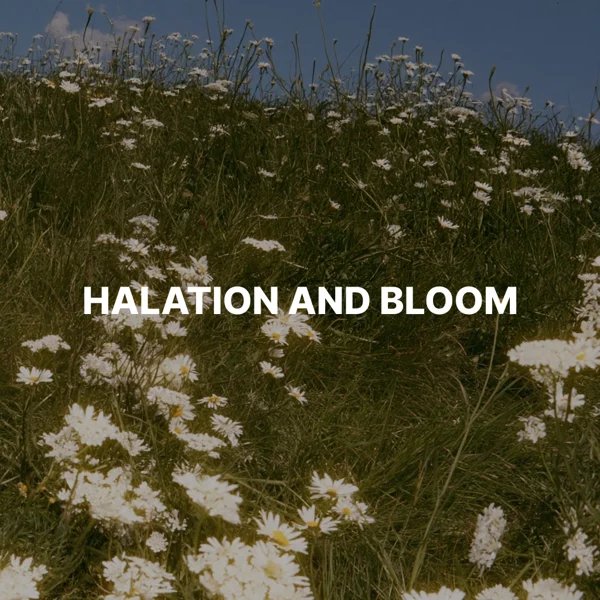
Halation is the red-orange glow that appears around bright areas on film. Light passes through the film, reflects off the back, and exposes the emulsion again.
Halation is a warm, colored glow, while bloom is usually a softer white glow. Choose a warm color for halation or a near-white color for bloom.
Only bright areas. The glow fades in as pixels get brighter, so shadows and midtones stay clean.
#FF4A1C, a warm red-orange similar to film halation. You can choose any color.
Use it for night scenes, neon lights, and cinematic portraits that need a film look.
The download keeps the original format. JPG and WebP use quality 92. PNG uses lossless compression. Effects that add a background can fill transparent areas.
No. Your image is processed on your device and is not sent to our servers.
No. All image tools are free to use, with no sign-in.