Make a duotone image
Use two colors for an image’s dark and light areas.Free to use in your browser, with no sign-in.
Drop an image hereor click to choose a PNG, JPG, or WebP file. Up to 20 MB.
How to make a duotone image
1. Choose an image
Choose a PNG, JPG, or WebP file up to 20 MB, or drop it onto the editor.
2. Choose two colors
Choose a shadow color and a highlight color. Check the preview as you adjust them.
3. Download image
Click Download image to save the result in the original file format.
FAQ
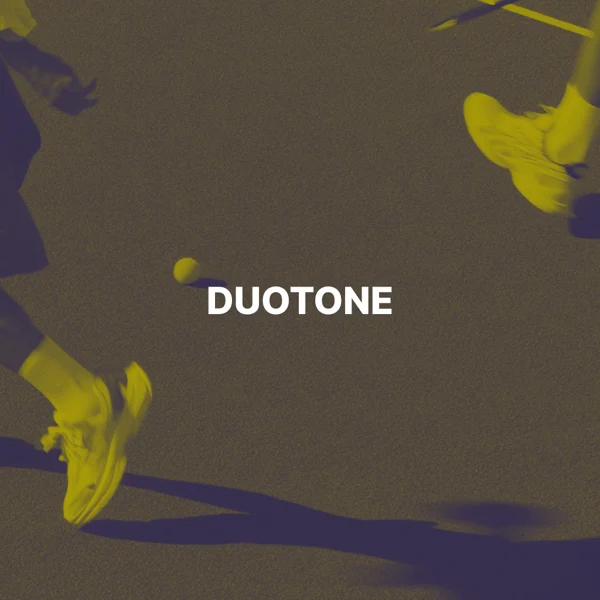
A duotone effect uses one color for dark areas and another for light areas. The shades between them blend the two colors.
Choose a dark shadow color and a light highlight color for clear contrast. Swap the colors to reverse the effect.
Shadows use #19274A and highlights use #F4C98C.
Use duotone to give posters, covers, or brand images a consistent color palette. Clear contrast helps keep the subject visible.
The download keeps the original format. JPG and WebP use quality 92. PNG uses lossless compression. Effects that add a background can fill transparent areas.
No. Your image is processed on your device and is not sent to our servers.
No. All image tools are free to use, with no sign-in.