Introducing Private Upload: Manage your AI images and prompts in one place
Private Upload is a new ctrlc.ai feature that keeps your AI-generated images and their exact prompts together in one place, visible only to you.
Your computer does not save a prompt with the image it made. So many people keep a .txt file next to every PNG, or paste images and prompts into a notes app, and after a few projects the two drift apart.
With Private Upload, each image and its prompt are saved as one card in your ctrlc.ai account, and you can open it from any browser.
A private space next to the public gallery
The public gallery is for references you want others to see.
Client drafts, unreleased concepts, and early experiments usually should not show up in a public feed. Private Upload gives that work a place on ctrlc.ai without publishing it.
How to upload privately
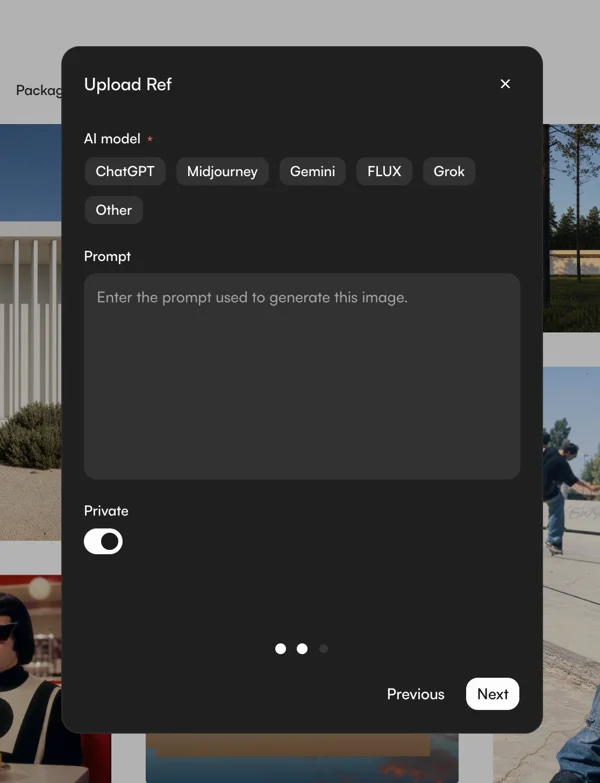
Private is one switch in the normal three-step upload:
Upload your image: Click the upload button in the top navigation to add your visual asset.
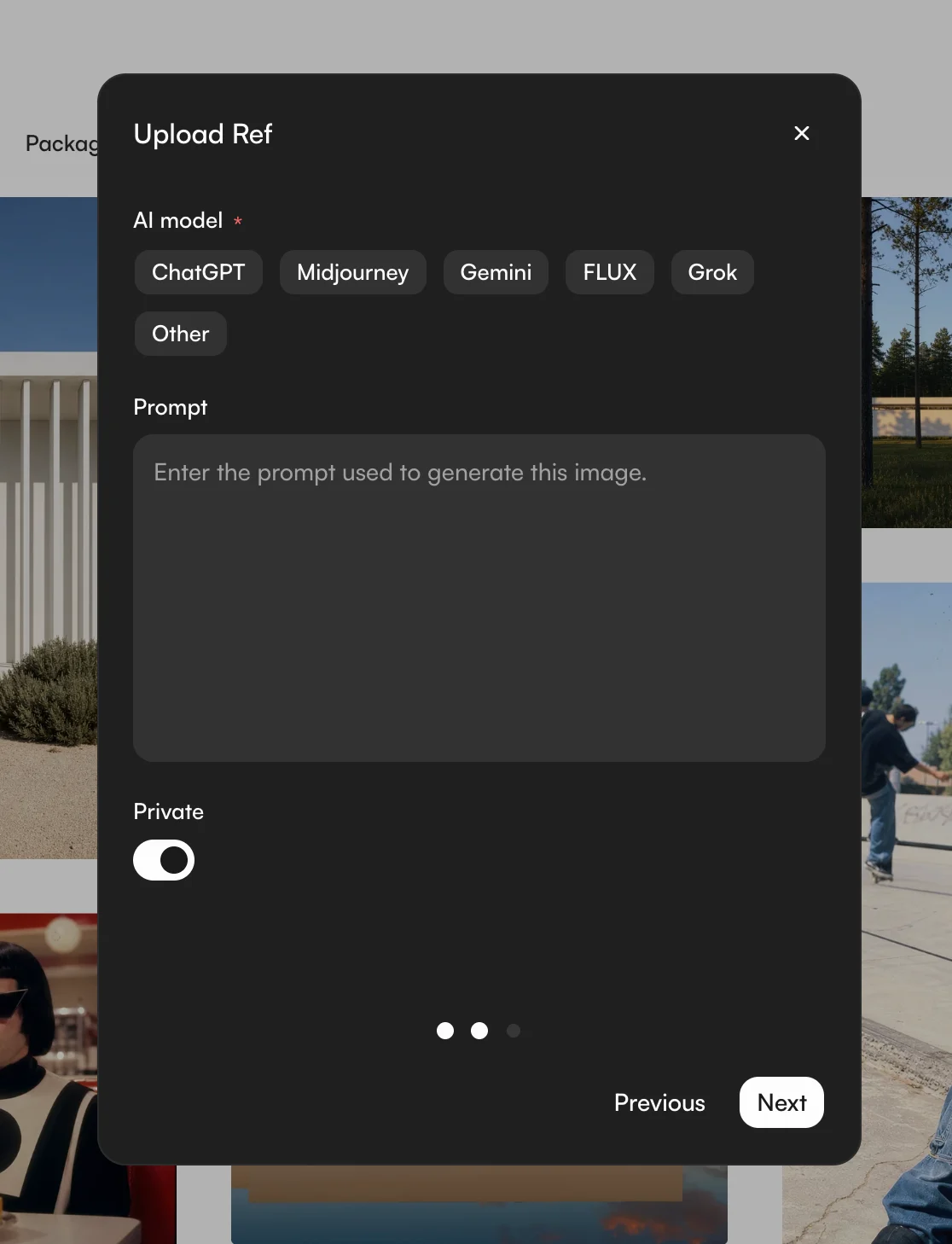
Enter prompt and toggle private: Enter your prompt text, select the generative model used, and switch on the Private toggle.
Add details and finish: Complete the upload by adding optional metadata, such as a title, description, or reference links.
Once uploaded, your private assets appear under the dedicated Private tab on your creator profile. Posts marked as private are excluded from public explore feeds and search indexing, remaining accessible only to you when logged into your account.
What it's useful for
A few ways to use it:
Retiring the .txt files: Keep each image and its prompt together, so you no longer need a matching text file for every render.
Archiving active client drafts: Store work-in-progress iterations, private moodboards, and experimental variations without displaying them on your public creator profile.
A personal prompt library: Save the lighting, lens, and material phrases that worked for you, next to the images they produced, and copy them into your next project.
Start organizing your prompt library on ctrlc.ai
Private Upload is available to all registered ctrlc.ai users.
Log in, click upload, and switch on Private for the first image you want to keep to yourself.