Introducing free image effect and editing tools on ctrlc.ai
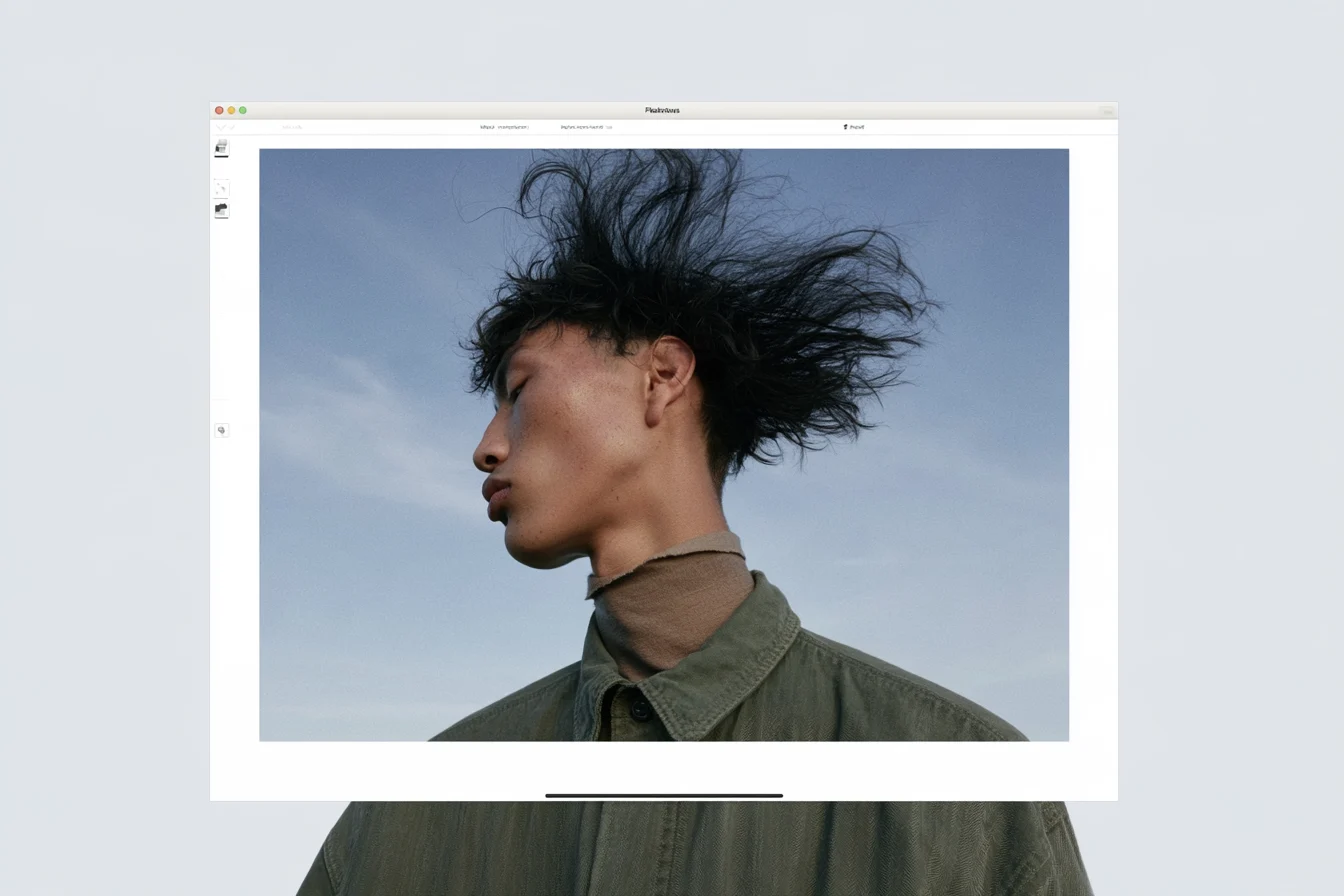
ctrlc.ai now has 36 free image effect and editing tools, from vignette, film grain, and chromatic aberration to brightness controls and Instagram resizing. They run in your browser, and you don't need an account to use them.
AI images often need one last adjustment before they go into a mockup or a moodboard. The render looks too clean, the eye wanders away from the subject, or the file just has to fit an Instagram post. Opening Photoshop or rerunning the prompt is more work than a change like that deserves.
The new tools handle that last step. Your image is processed on your device and never sent to our servers, and the result downloads in the same format you uploaded.
Six effects to try first
Vignette
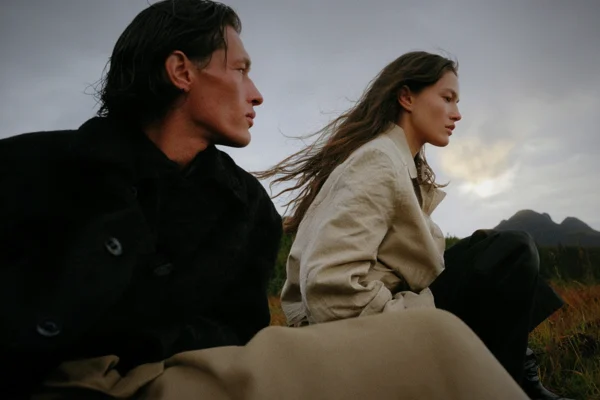
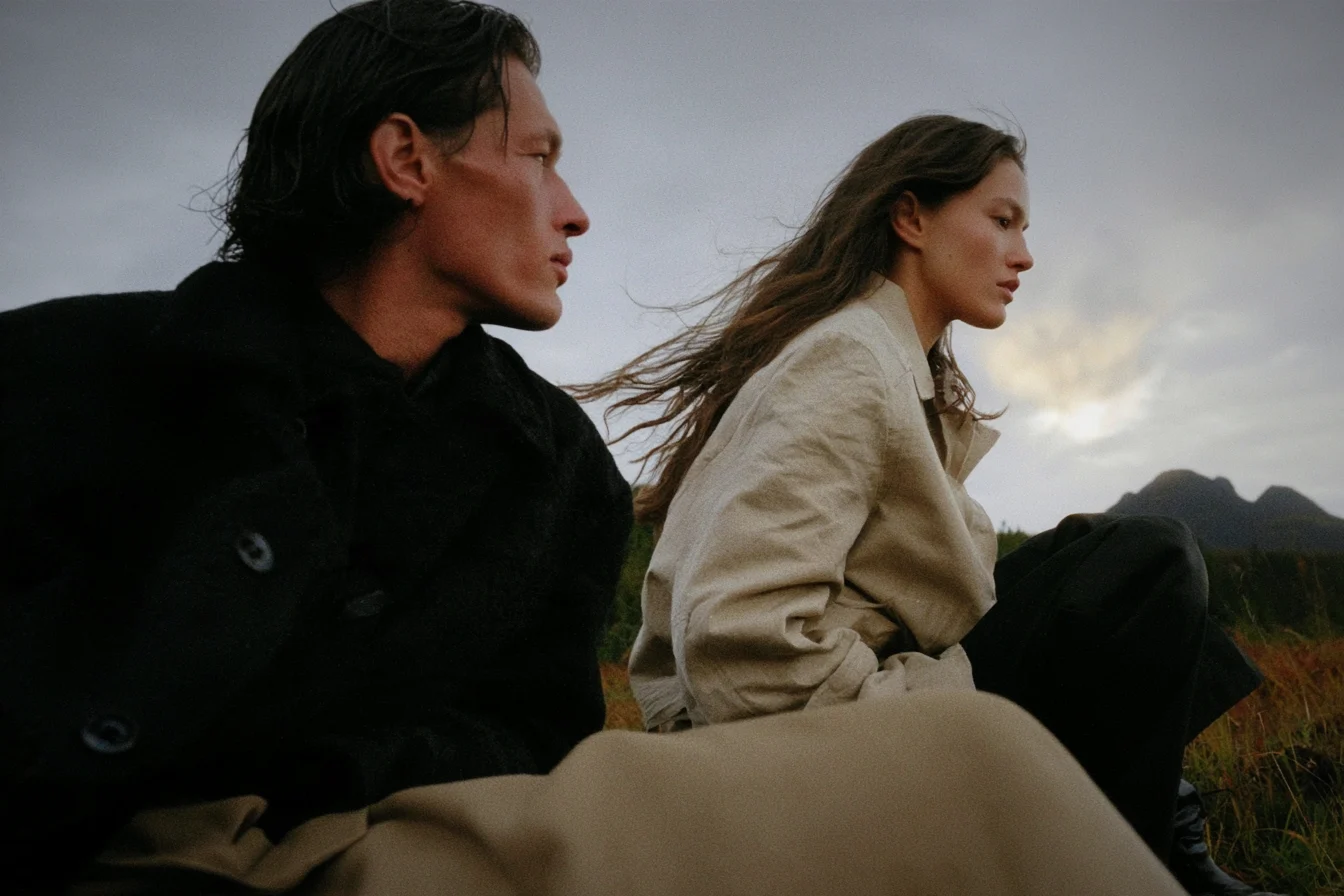
A vignette darkens the edges of an image so the eye moves toward the center. You set the edge darkness with a slider, and the default is 45. The shading follows the image's proportions, and the center stays unchanged.
Film grain
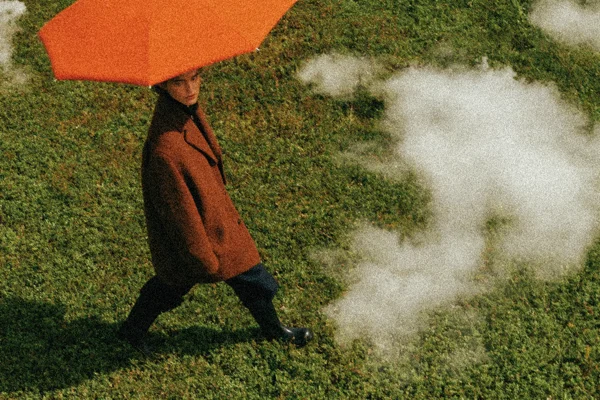
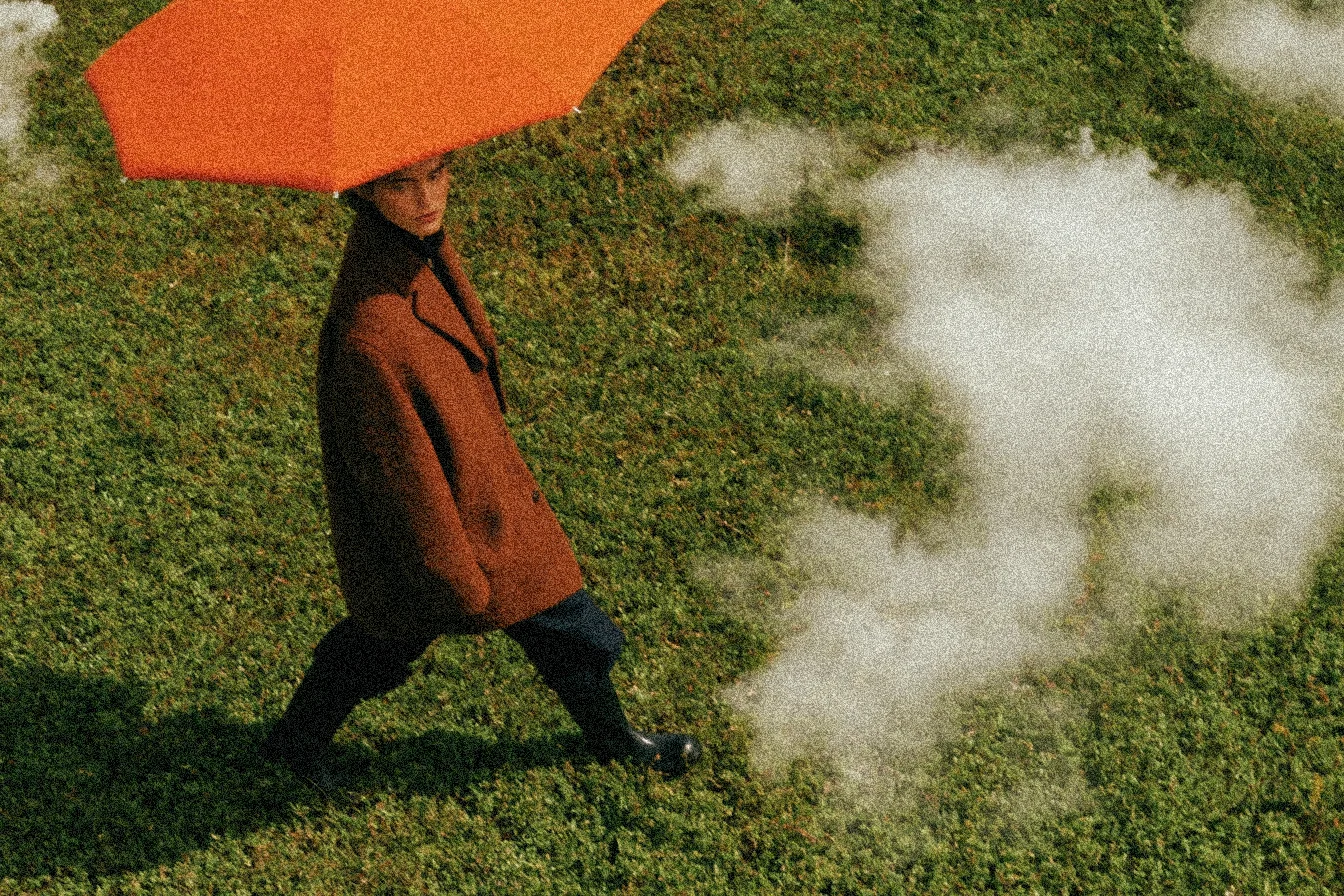
Film grain adds the fine texture of photographs shot on film. You set the strength with a slider, and the default is 30. It softens the overly smooth surfaces of AI renders, and a little grain also makes banding in skies and soft shadows less noticeable.
Pixelate
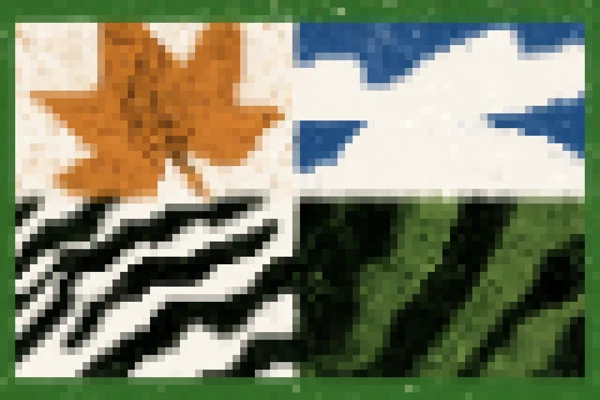
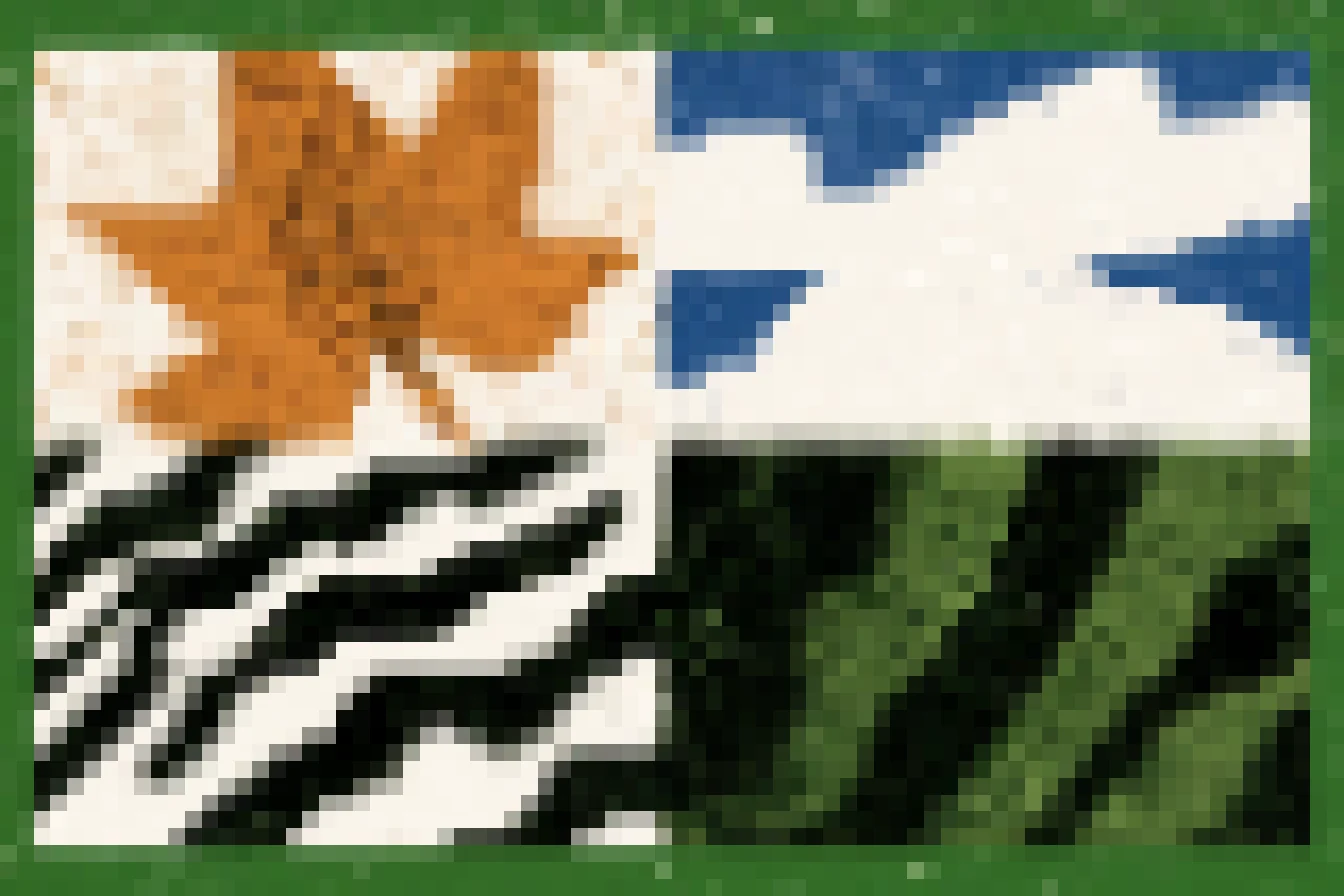
Pixelate turns an image into square blocks. Block size runs from 2 to 64 px with a default of 12 px, and larger blocks show less detail. Use it for a retro game look or an abstract background. Don't rely on it to hide names, numbers, or other sensitive details, since pixelated text can sometimes be reconstructed. Cover those with a solid shape instead.
Chromatic aberration
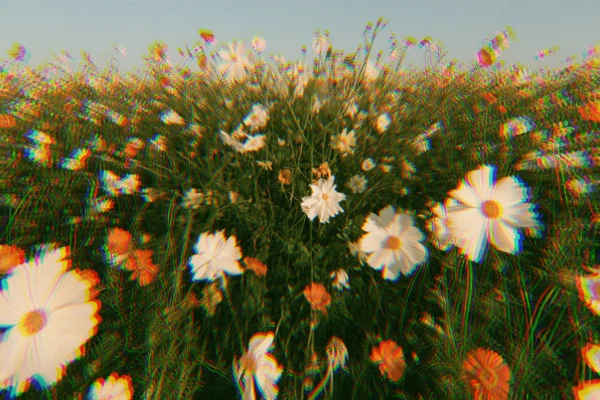
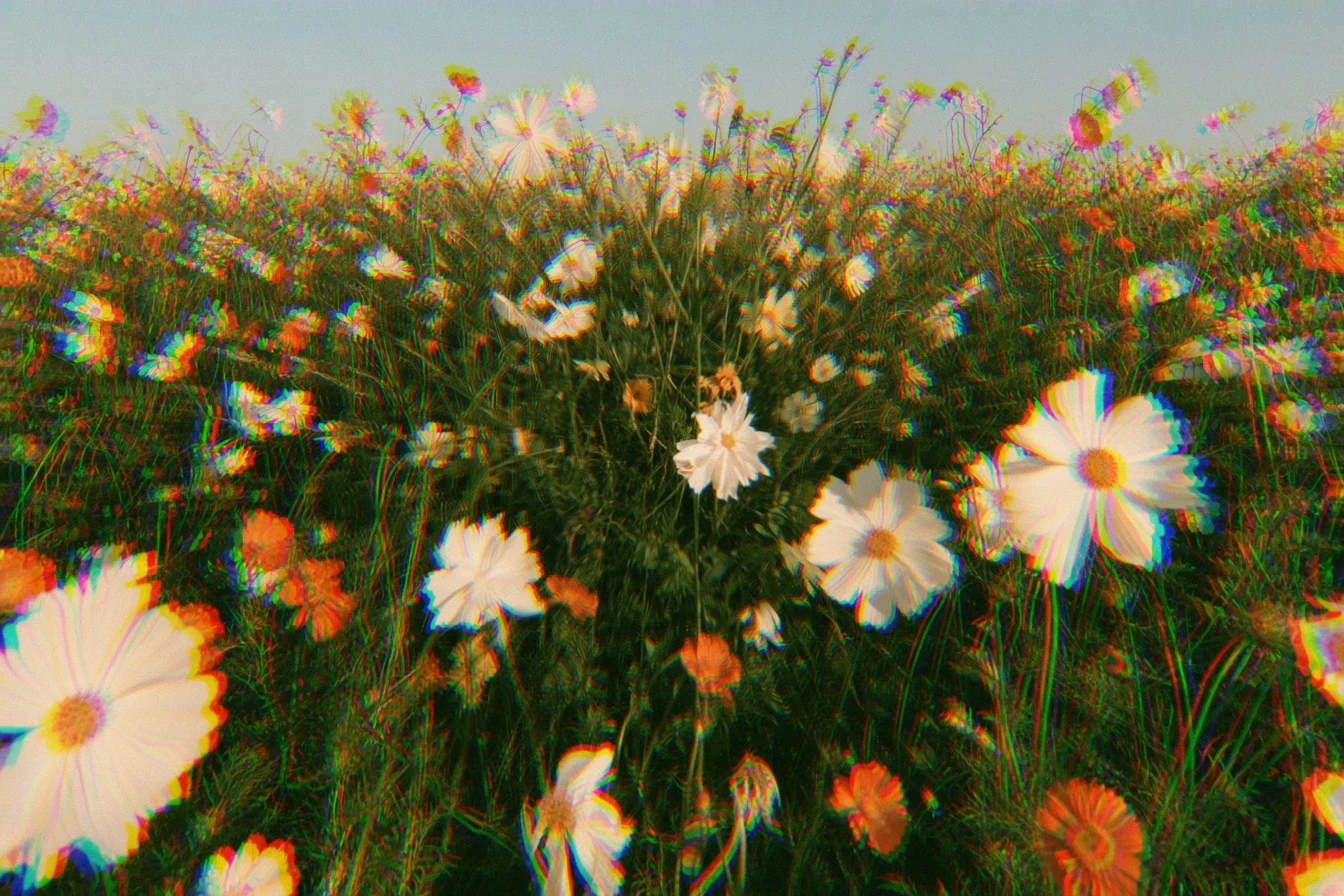
Chromatic aberration recreates the lens flaw that leaves red and blue fringes along edges. The center stays sharp, and the color shift grows toward the corners. The offset runs from 0 to 60 px with a default of 12 px. A few pixels give a subtle lens look, and higher values create a strong RGB split for glitch and retro styles.
Try the chromatic aberration tool →
Halation and bloom
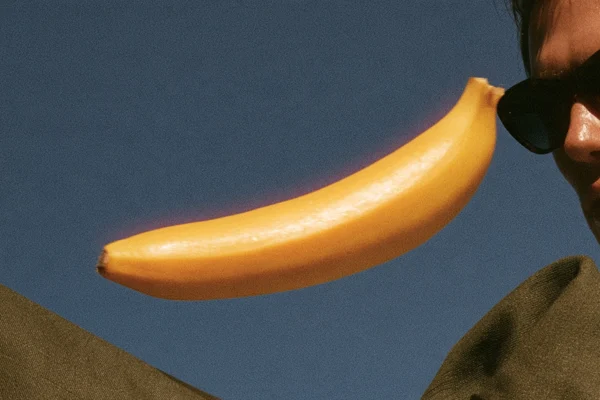
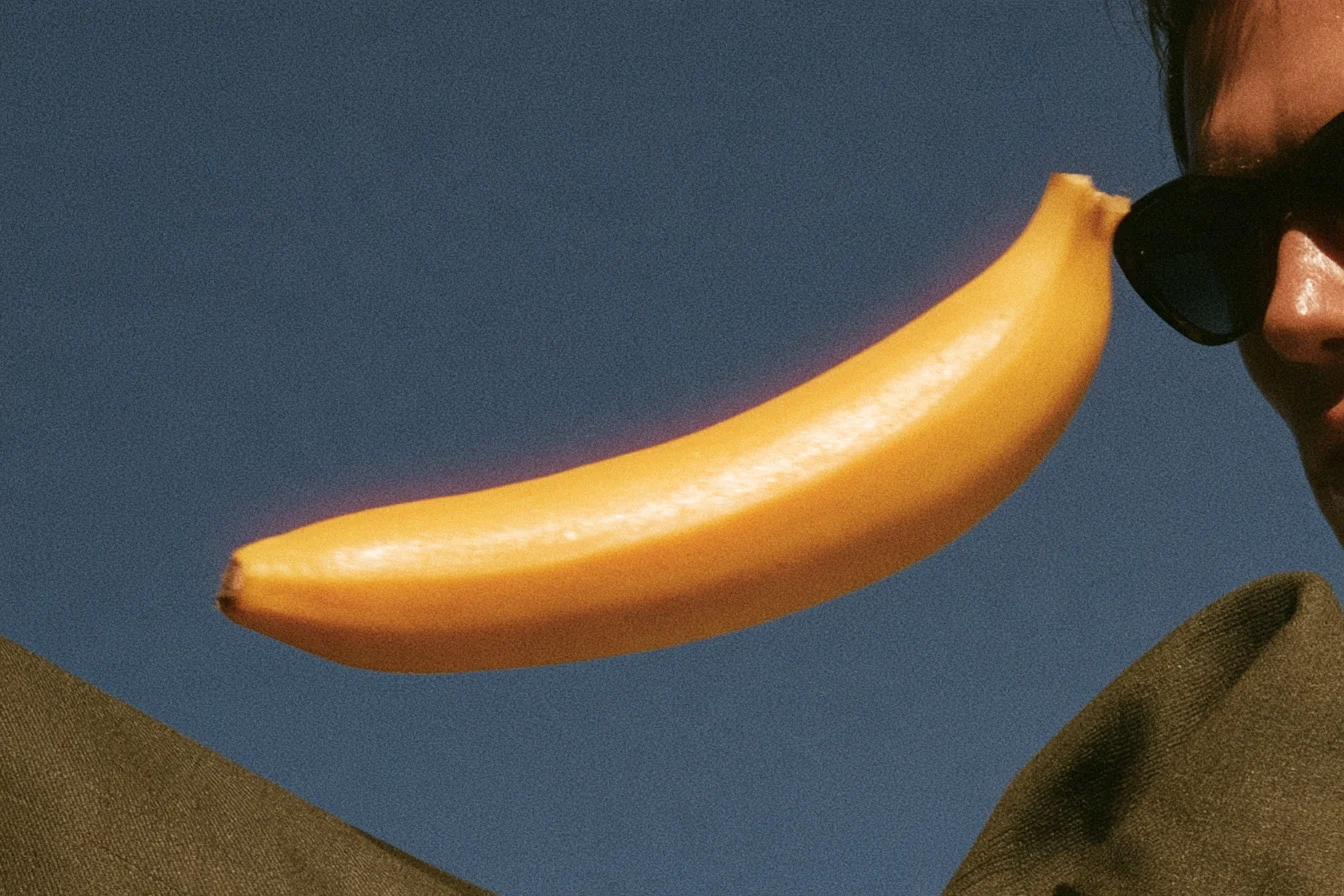
This tool adds a soft glow around the brightest parts of an image. The default glow color is a warm red-orange (#FF4A1C) similar to film halation, and a near-white color gives you bloom instead. Shadows and midtones stay clean, which makes it a good fit for night scenes, neon, and cinematic portraits.
Try the halation and bloom tool →
Fluted glass
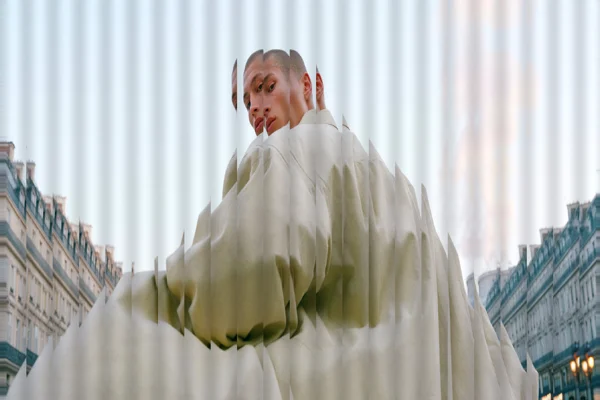
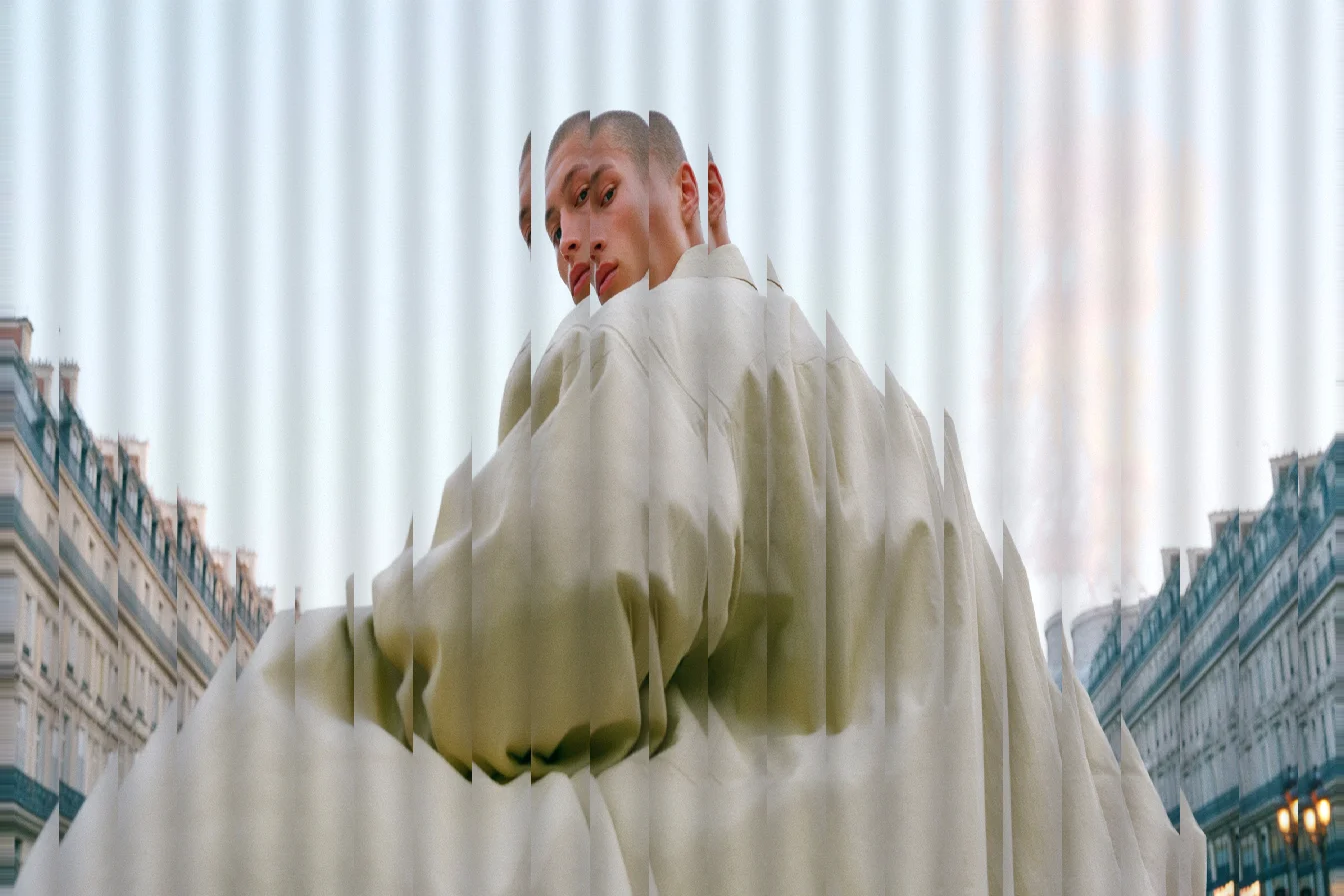
Fluted glass bends an image into repeating strips, as if you were looking at it through reeded glass. You can set the rib width from 8 to 160 px, the amount of distortion, and the direction of the ribs, and the original colors stay intact. It works well for hero backgrounds, posters, and abstract textures.
All 36 image effect and editing tools
Film and photo: Vignette, Film grain, Halation and bloom, Light leak, Chromatic aberration, Sepia
Print and graphic: Halftone, Risograph, Photocopy, Duotone, Gradient map, Posterize, Threshold, Dithering
Digital and glitch: Pixelate, Fluted glass, CRT scanlines, Pixel sorting, ASCII art, Blur, Invert colors
Color: Brightness, Contrast, Saturation, Hue, Grayscale
Size and shape: Resize, Rotate, Flip, Padding, Rounded corners, Compress
Social formats: Instagram, Pinterest pin, TikTok photo, X header
How the tools work
Every tool works the same way:
Files stay on your device: Processing happens in your browser, and your image is not sent to our servers.
No sign-up: Drop in a PNG, JPG, or WebP file up to 20 MB, adjust the slider, and download the result.
Same format out: The download keeps your original format. JPG and WebP save at quality 92, and PNG saves losslessly.
One effect per tool: To combine effects, download the result and open it in the next tool.
Using the tools with AI images
Add texture to a clean render: Run an image through film grain, then open the result in the halation tool. The smooth AI finish starts to look more like film.
Direct the eye: A light vignette helps the subject stand out in a reference with a busy background.
Fit a format before posting: The Contain option in the social format tools keeps the whole image and fills the empty space with a background color.
Browse every tool on the image tools page. If you need to change a file's format, try our free image conversion tools.